While adding a controller in ASP.NET MVC 3 application, you might get a error “Unable to retrieve the metadata for …”. This error is due to the incorrect connection string name or the connection string in the web.config. I had encountered the same error and the issue was that the name of my DBContext was different from that of the web.config connection string name. When I made it same it was able to create the controller.
This article talks about building a simple application using ASP.NET MVC and MongoDB. From my earlier blog post, the installation steps for Mongo DB were explained. For building application using MongoDB and .NET, we need the 10gen C# Driver. This can be downloaded from http://github.com/mongodb/mongo-csharp-driver/downloads Let’s began creating a simple ASP.NET MVC 3 application. We will be creating a simple application which will save the contact details and view the same. The contact model is as show below public class Contact { [ Required ] [ Display (Name = "Contact ID" )] public int ContactID { get ; set ; } [ Required ] [ Display (Name = "Name" )] ...
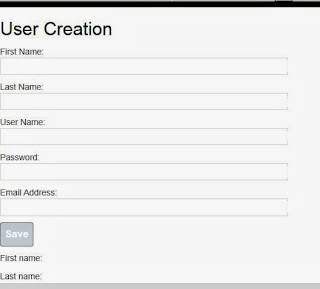
This article describes a simple application intended to notify users when a new user is created. To build the same we are using the technologies like ASP.NET MVC 4, SignalR, KnockoutJS, ToastR, Twitter BootStrap. First lets create a ASP.NET MVC 4 Web Application. Lets add the SignalR, KnockoutJS, ToastR, Twitter BootStrap by using the Package Manager Console into the project. install-package knockoutjs install-package Microsoft.AspNet.SignalR install-package Twitter.Bootstrap install-package Toastr We added a new page "CreateUser.shtml" and the code looks like as shown below < h2>User Creation < script src="../../Scripts/jquery-1.9.1.js" type="text/javascript"> < script src="../../Scripts/knockout-2.3.0.js" type="text/javascript"> < script src="../../Scripts/bootstrap.js" type="text/javascript"> < div class="container-fluid"> First Name: < input typ...

Comments